Saving Dynamic Reports
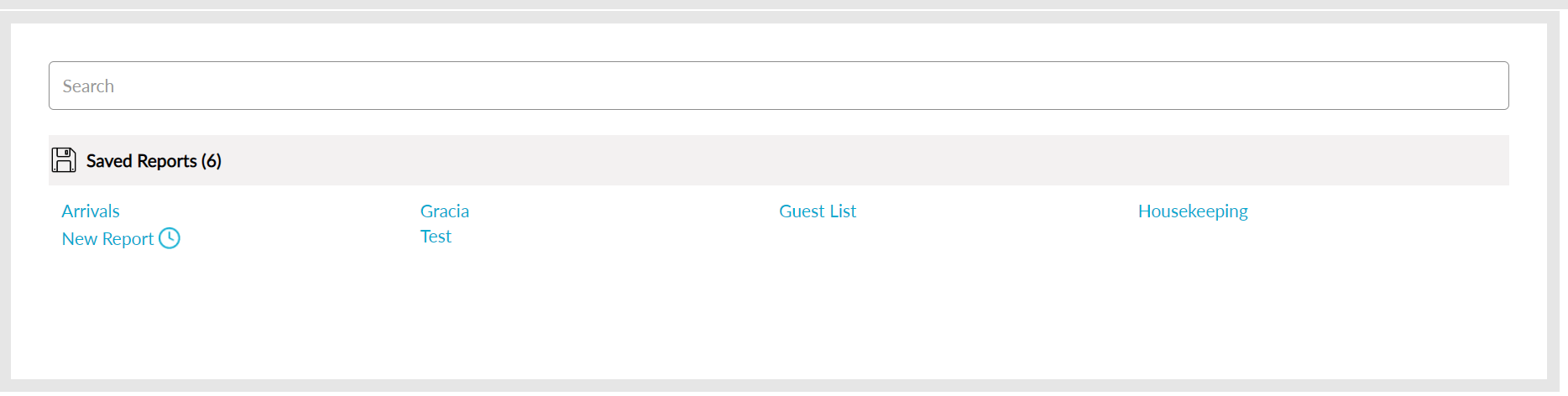
Users have the option to save reports and view saved reports in the Saved Reports section (Reports ➜ Dynamic Reports ➜ Saved Reports).
Navigate to Reports ➜ Dynamic Reports
Select the preferred report and fill in the required fields.
Click Run. The preview of the report with the selected data appears.
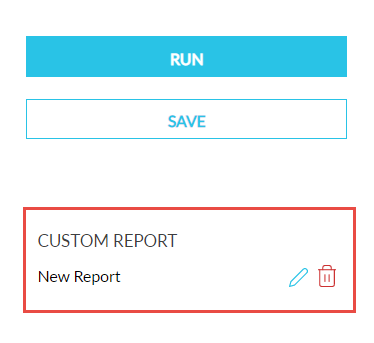
Click Save to save the report as a custom report. The Save As Custom Report Screen is displayed.
Enter the required details.
Enable/Disable the Include Current Column Setting Favourites checkbox if necessary.
Click Save. The Report is saved in the User Favorite Section (Reports ➜ All Reports ➜ User Favorites).
User can edit the saved report by clicking the edit icon.
User can delete the saved report by clicking the delete icon.